Papers, request, columns, results: build a database in four steps, with screenshots of every screen.
Quick start · Guided mode (Lite)
Guided mode is the fastest way from papers to a database. It is the first screen you see at sci-database.com: four steps, one screen at a time, with nothing to set up.
Papers → Request → Columns → Results
Use it when you want a database quickly. Switch to Pro (the toggle at the top of every page) when you need advanced search filters, your own saved schemas, validation with a second model, or sharing. Anything you make in Guided mode can be opened in Pro later.
Step 1 · Papers
Add the papers in one of two ways.
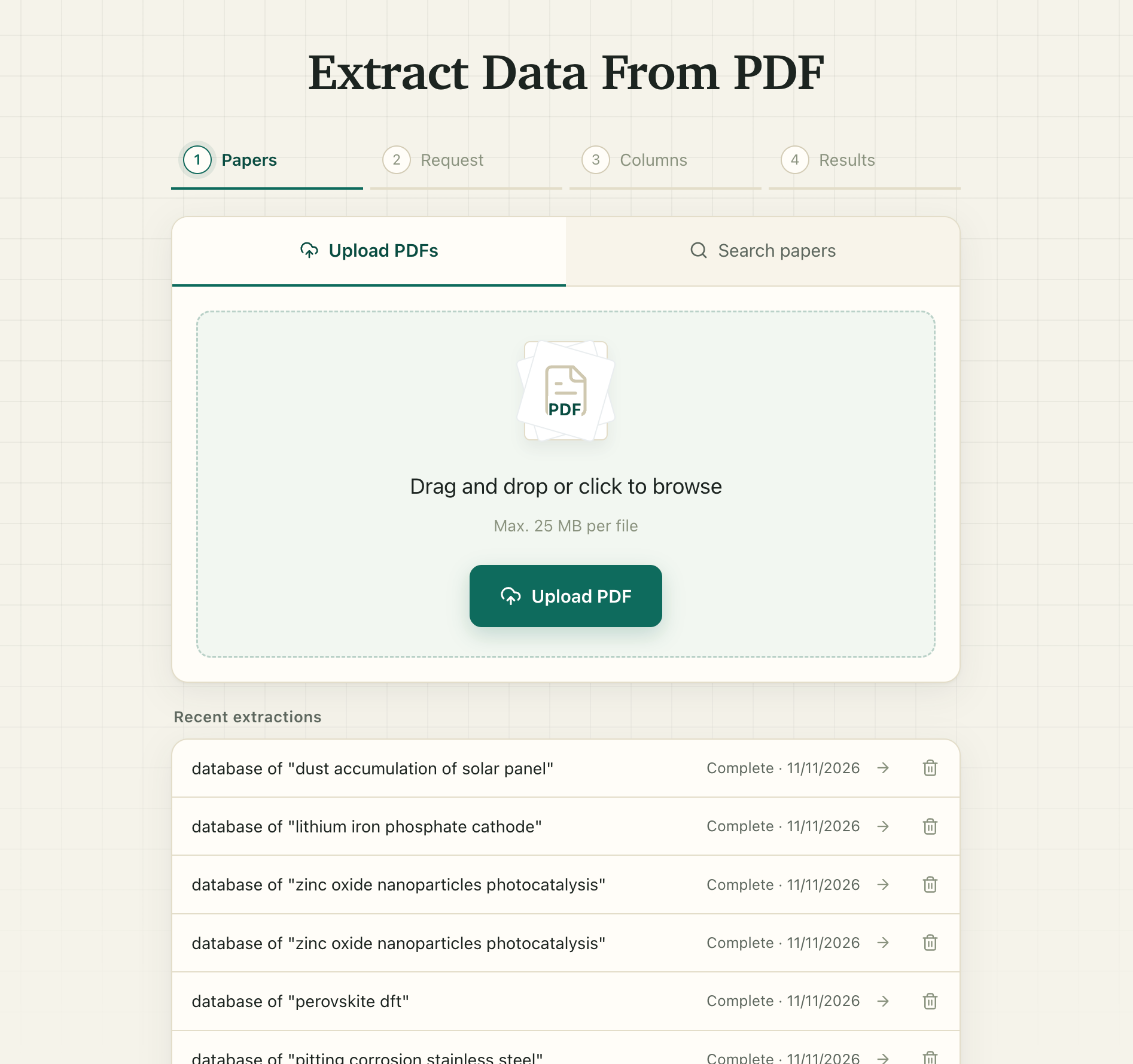
Upload your own PDFs
Drag PDFs onto the drop area or click Upload PDF. Each file can be up to 25 MB. Newly added files appear at the top of the list; click one to see its details.
Search open-access papers
Open the Search papers tab, type a topic and press Search. The results come from OpenAlex and are limited to open-access papers.
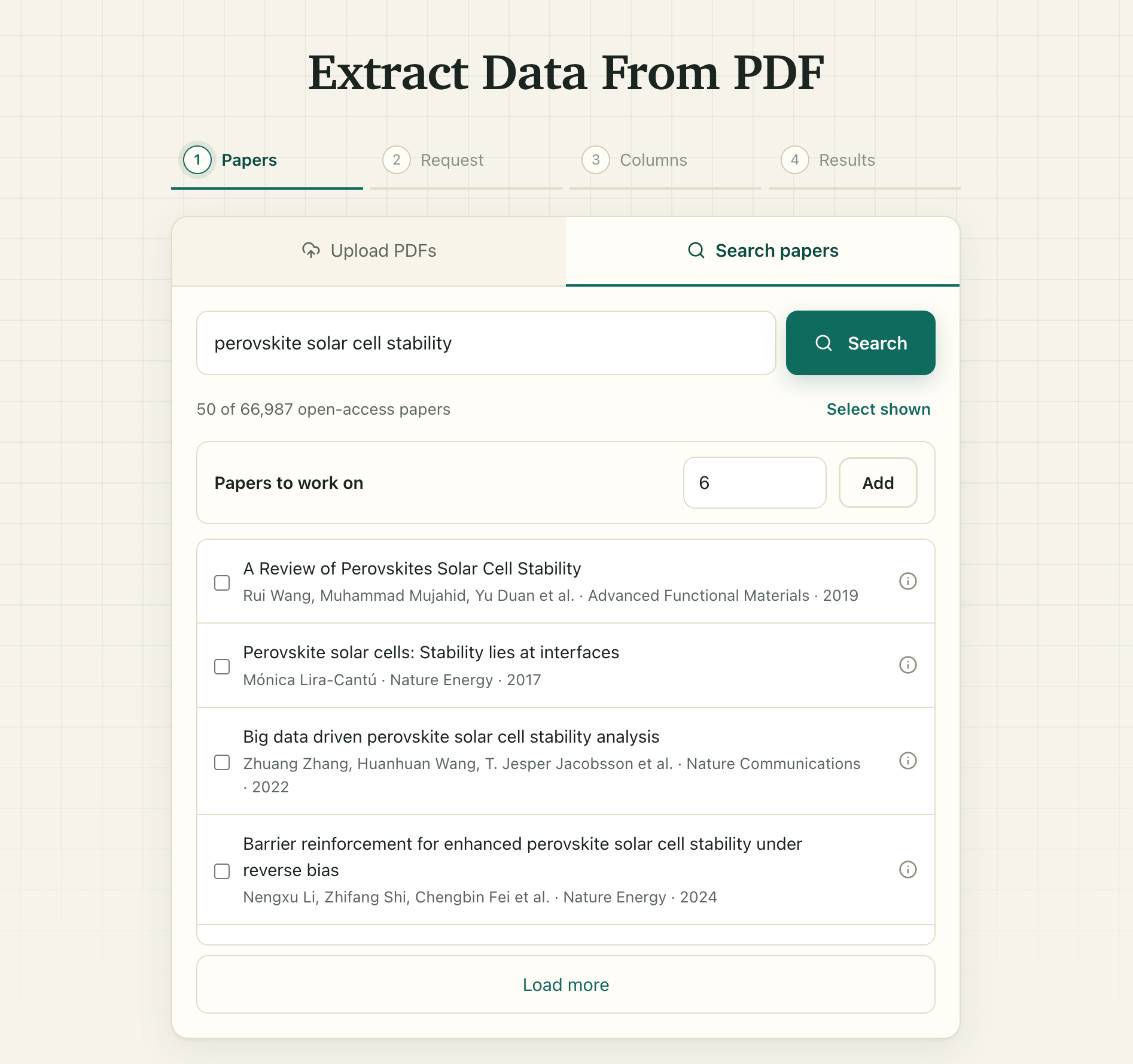
- The line under the search box shows how many open-access papers exist for the topic.
- Type a number in Papers to work on and click Add to take the first papers of the search. You can also tick individual papers.
- The ⓘ icon on a paper opens its details: authors, journal, year and DOI.
- Recent searches appear as chips under the search box.
When papers are selected, a bar appears at the top with the count and Continue.
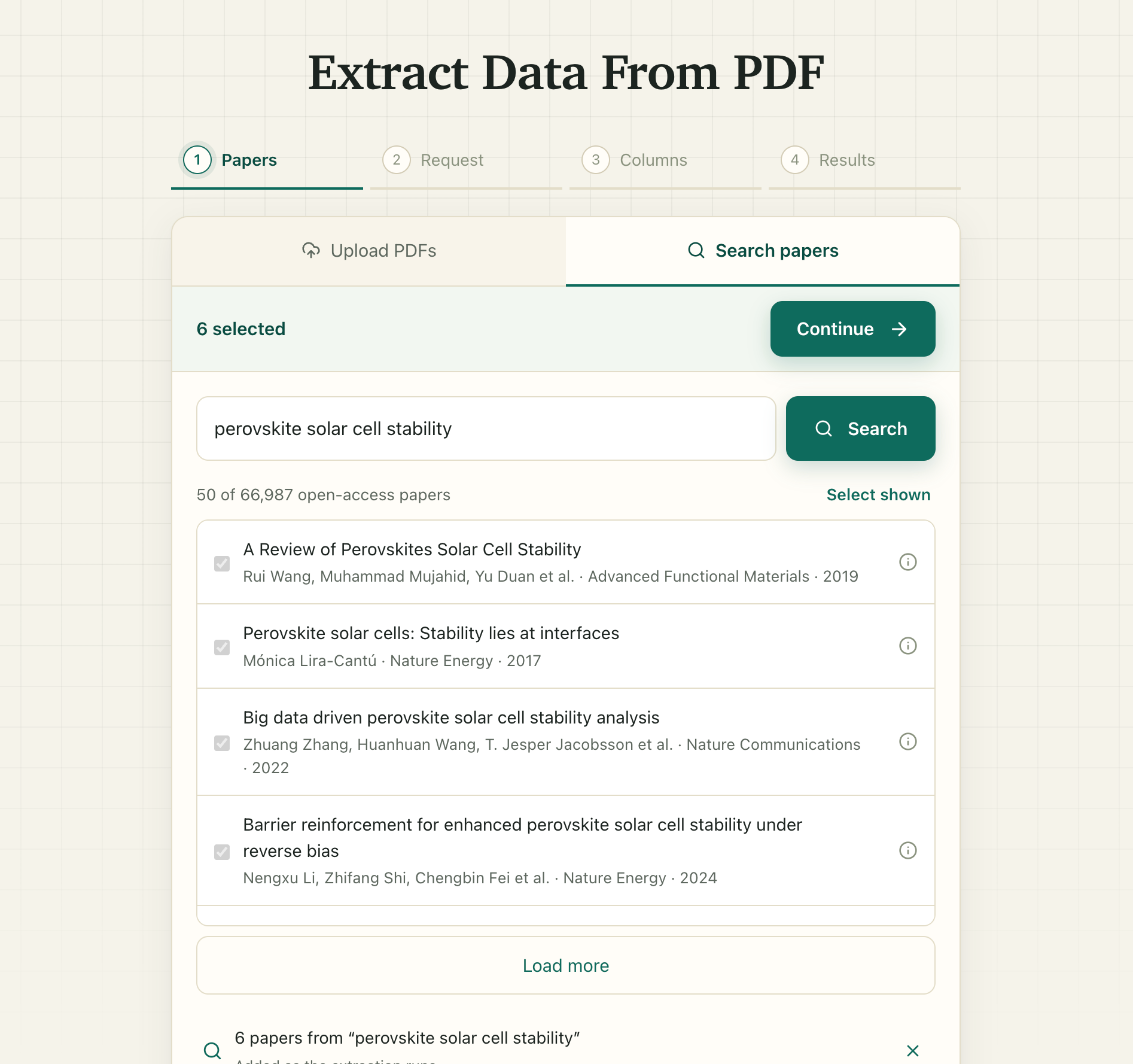
How many papers? An extraction can hold up to one and a half times the papers your credits can pay for. The margin exists because papers without an open PDF cost nothing.
Step 2 · Request
The request tells the AI what your database is about. After a search it is filled in for you as database of "your topic", and the columns are created straight away. After an upload, describe what you need in a sentence or two, for example:
Extract the sample size, methods, results, and DOI from each paper.
Step 3 · Columns
The AI proposes the columns of your database: at most ten, each with a name, a type and a description of what to extract. A number is always paired with a unit column.
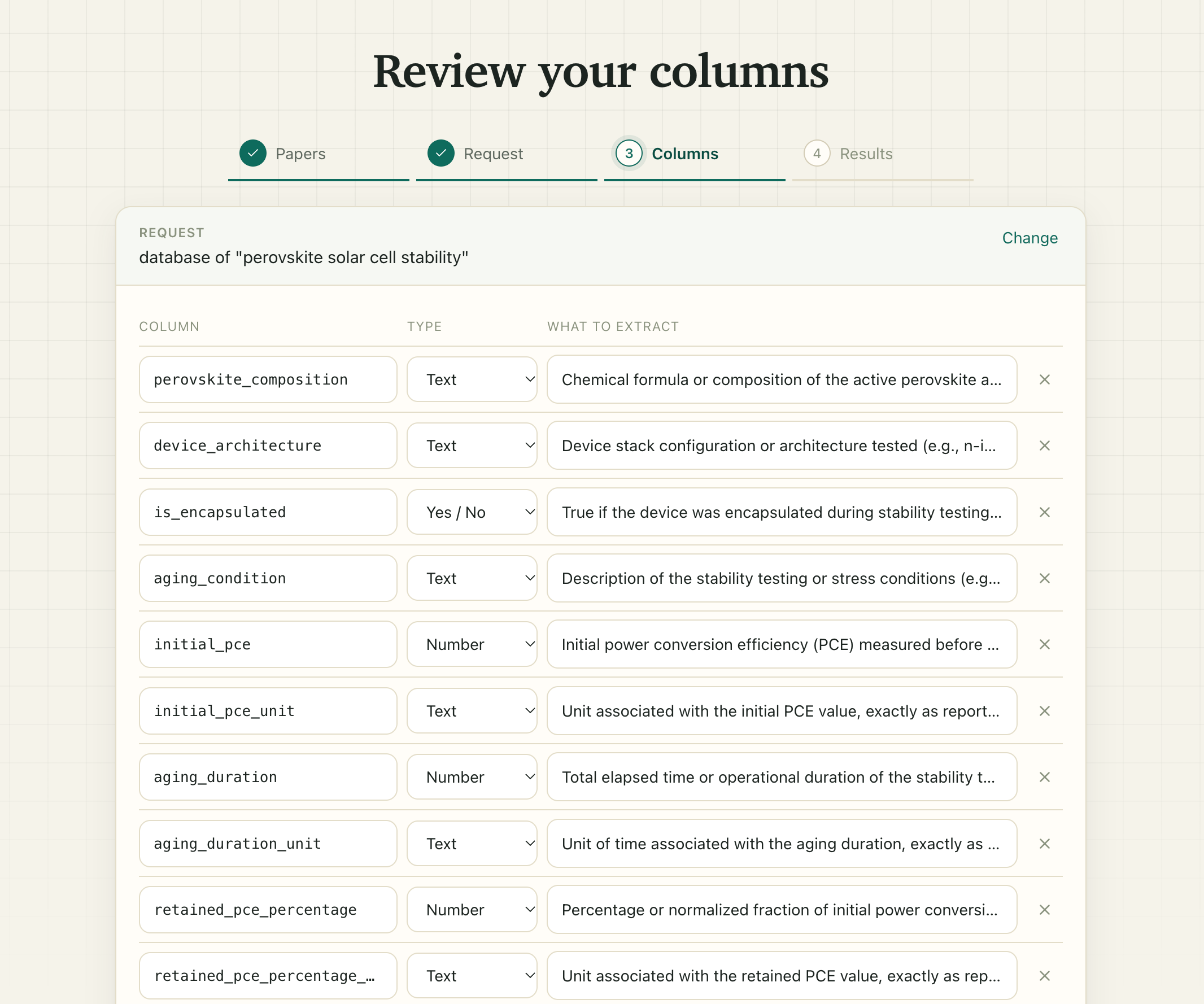
- Click a column to open it in a window with its full text. The name, the type and the description are all editable there.
- Add column adds your own; the × removes one.
- Change (next to the request) rewrites the request and creates the columns again.
- Back returns to the Papers step with your papers still selected.
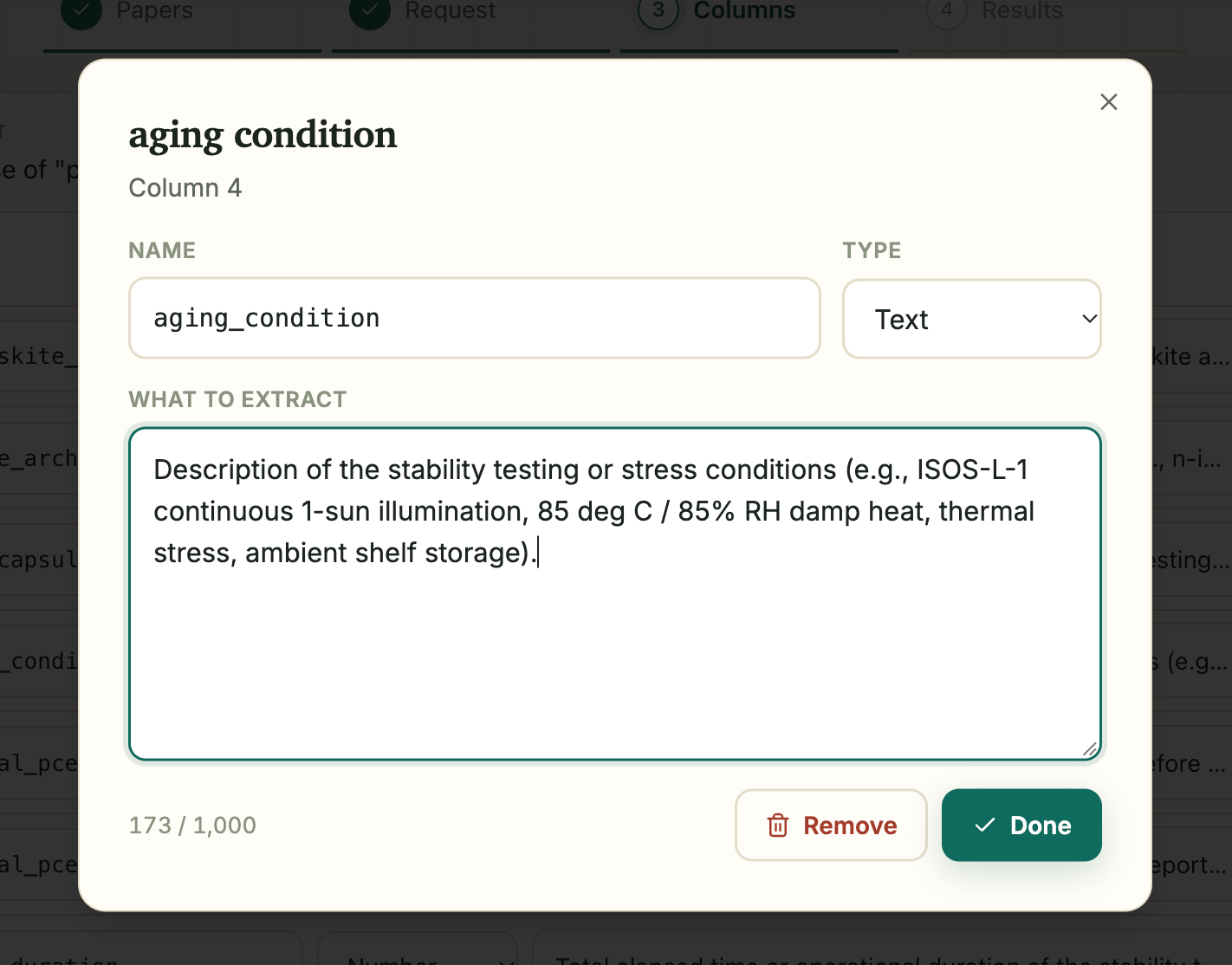
The description is what the AI follows when it reads each paper, so it is worth a look: say what counts, and what to leave out.
When the columns look right, click Start extraction.
Step 4 · Results
The papers are read in parallel and rows appear as each one finishes. The first rows usually arrive within about twenty seconds.
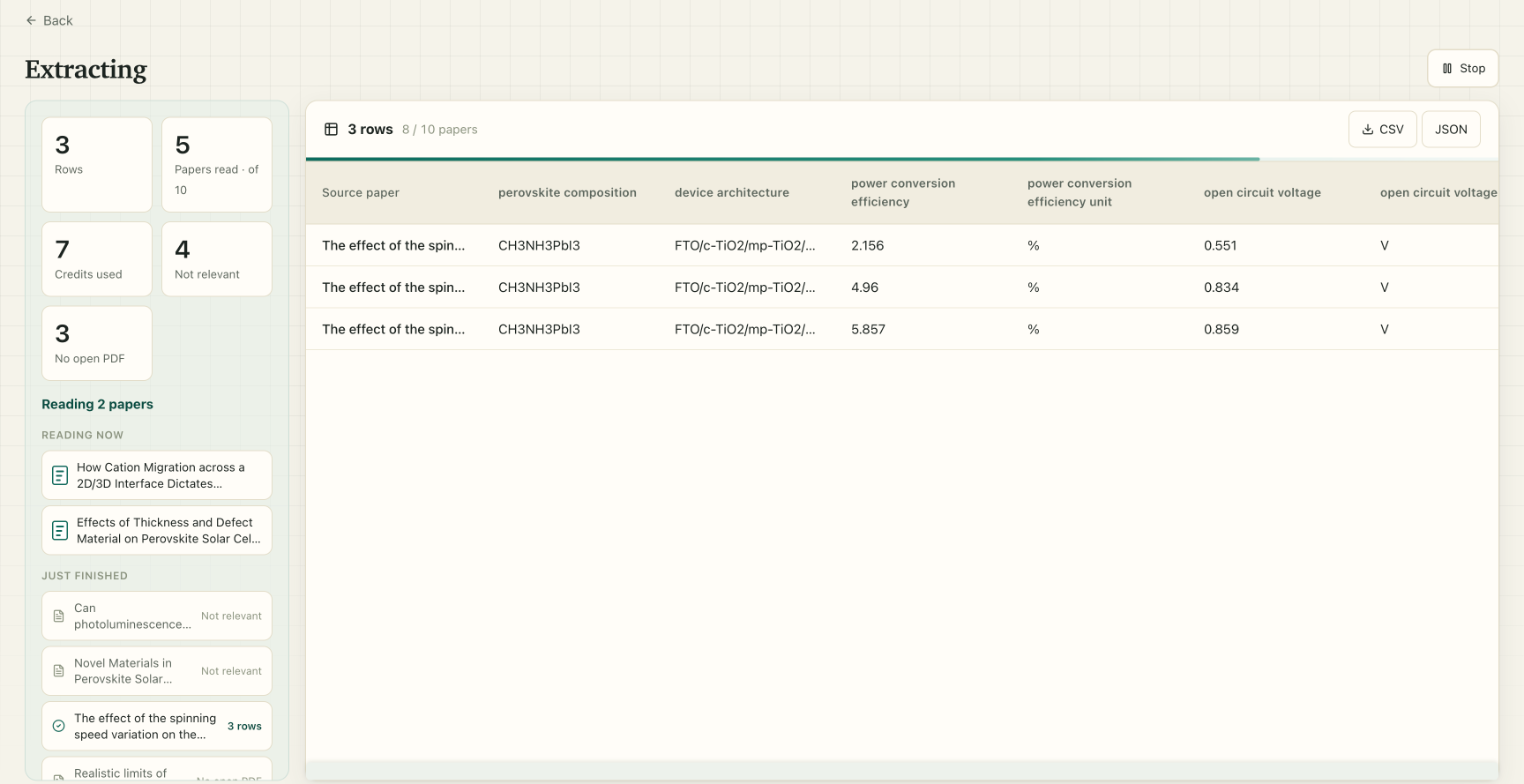
The left panel shows what is happening:
| Tile | Meaning |
|---|---|
| Rows | Records extracted so far. One paper can give several rows. |
| Papers read | Papers finished, out of the total. |
| Credits used | What this extraction has cost. |
| Not relevant | Papers that were read but are not about your request. |
| No open PDF | Papers whose PDF could not be obtained. These are not charged. |
| Failed | Papers that could not be read. These are not charged, and can be retried. |
Reading now lists the papers being read at this moment, and Just finished the latest ones with their row count. Stop pauses the extraction; Resume continues from the same point. Closing the tab does not lose anything: open the extraction again from Recent extractions.
Your database
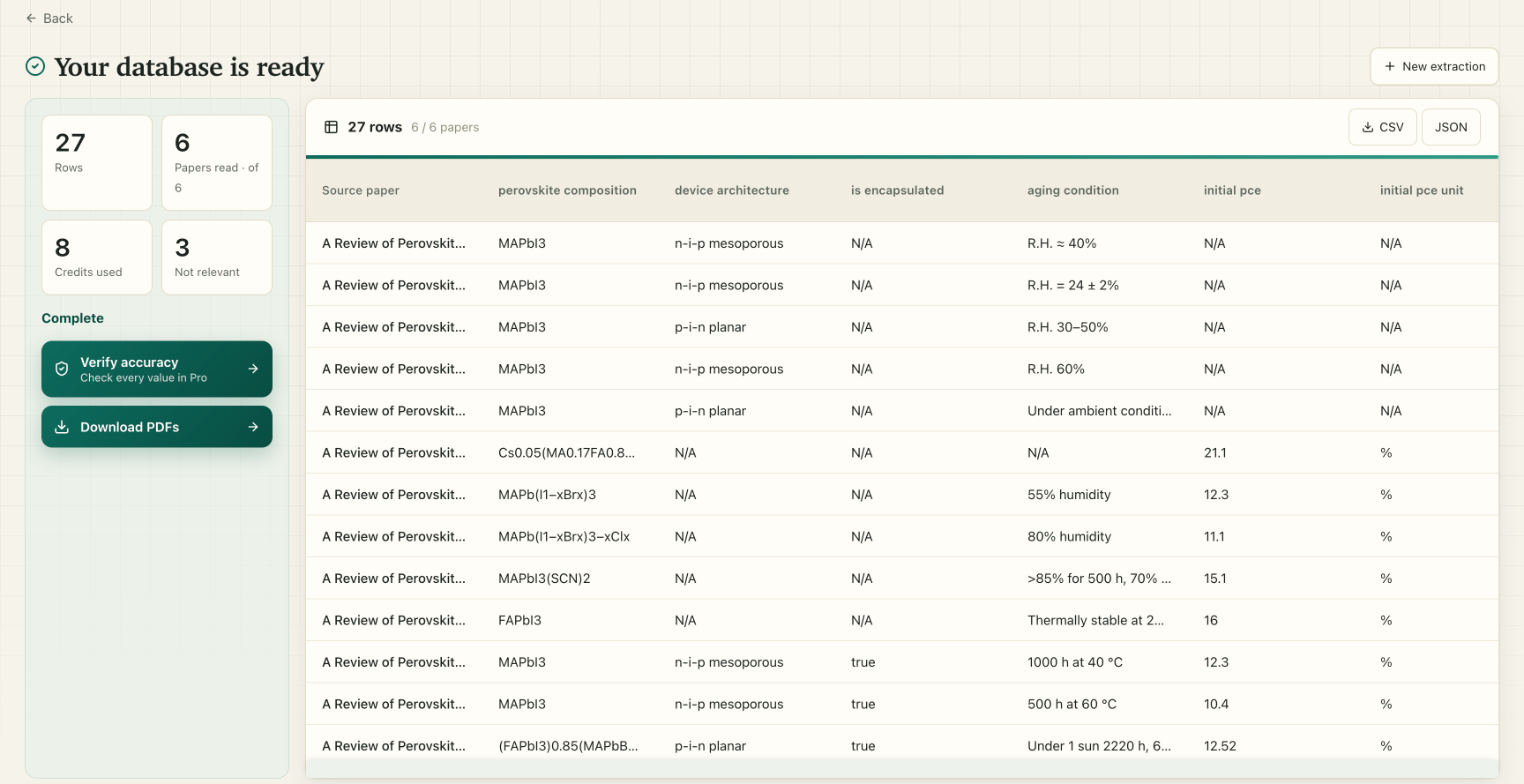
Every row is one record, with its source paper in the first column. Rows are one line high, like a spreadsheet, and the latest paper is at the top.
- Click a value to read it in full, with the column's description and a link to the paper.
- Click a paper title to see its journal, year, DOI, and what was extracted from it.
- CSV and JSON download the whole table.
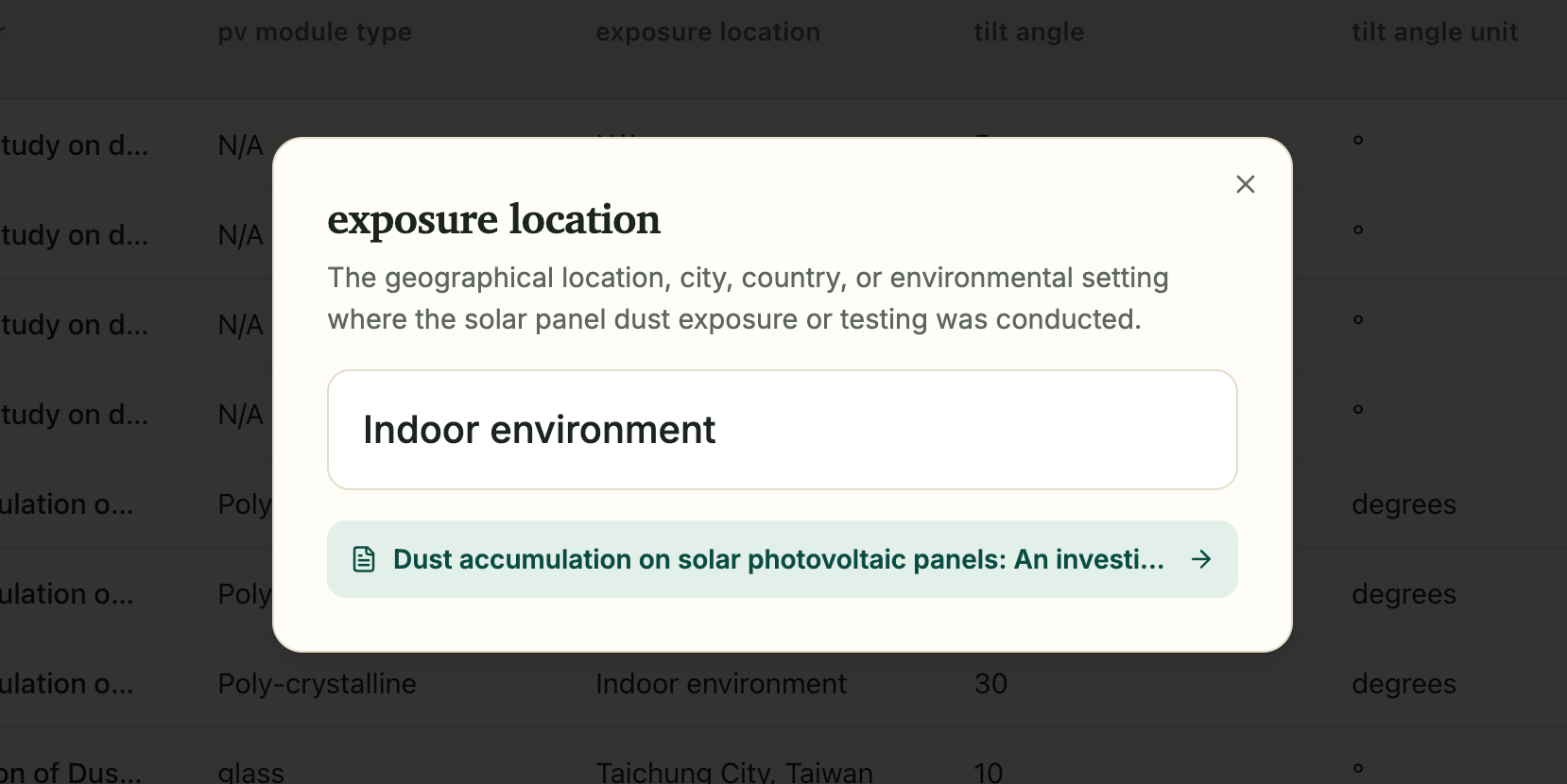
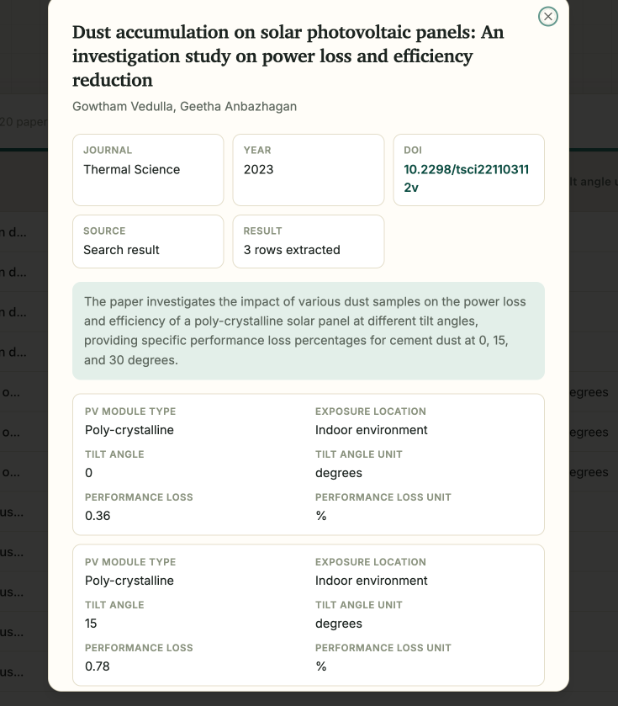
A value that is not in the paper is shown as N/A. Nothing is guessed.
Verify accuracy
Verify accuracy opens this database in Pro, where a second AI model reads a sample of the papers again and compares every value with the first extraction. Your columns come with you as the current schema. See Validation and the AI Judge.
Download PDFs
Download PDFs lists the PDFs the extraction already holds, in batches of ten: your uploads, and the open-access files kept when the papers were read.
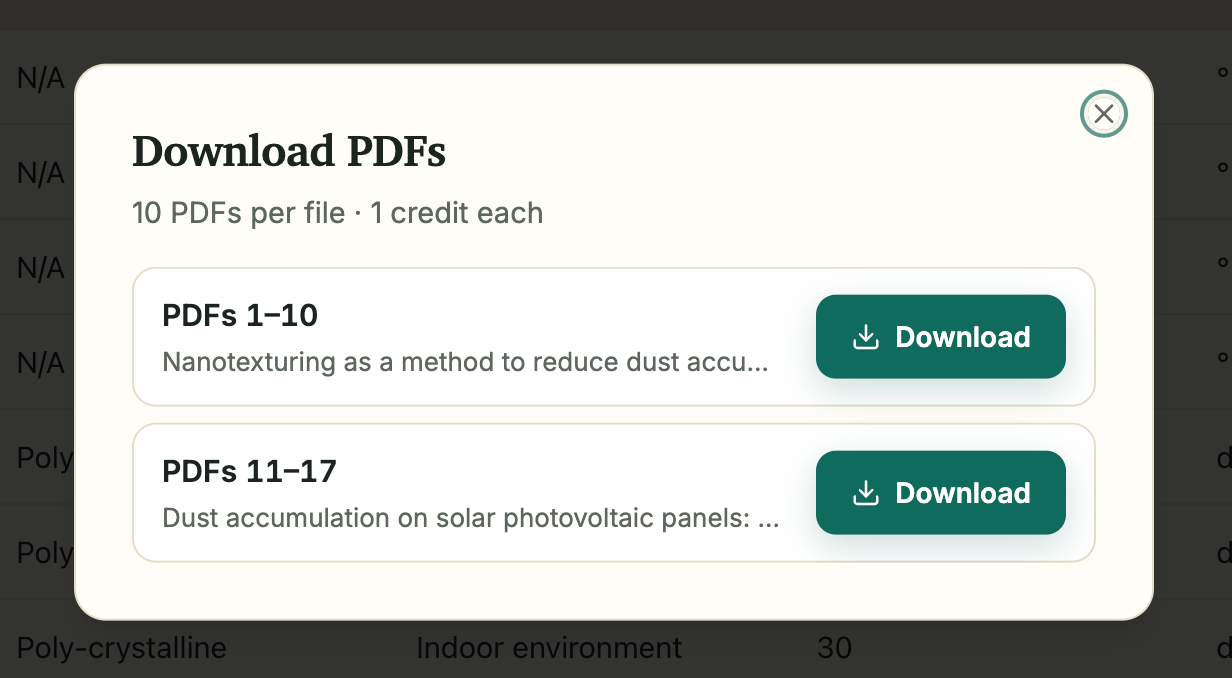
Each batch is one zip file and costs 1 credit the first time. Downloading the same batch again is free.
Recent extractions
The Papers step lists your recent extractions. Click one to open it, including one that is still in progress. The trash icon removes an extraction: click it once, then click Remove.
What it costs
| Action | Credits |
|---|---|
| Creating the columns | 2 |
| Each paper that is read | 1 |
| A paper with no open PDF, or one that failed | 0 |
| A batch of ten PDFs | 1 |
See Credits and pricing.
If something stops you
- "You have used your 20 searches today": the daily search limit was reached. Add your own OpenAlex key in the box that appears, upload PDFs instead, or come back after 00:00 UTC.
- "OpenAlex daily limit reached" during an extraction: add your own OpenAlex key in the box that appears. The papers that were waiting are read again.
- No open PDF on many papers: those papers are not freely downloadable. Download them from the journal and upload them.
- Start extraction is replaced by Add papers: the extraction has no papers yet. Click it to go back and add some.
Next: Getting started →