Explore extracted records, inspect individual papers, and export to CSV, JSON, or Excel.
8 · Your database & exports
The Database tab (title: Project Database) lists every extraction job you've run, newest first.
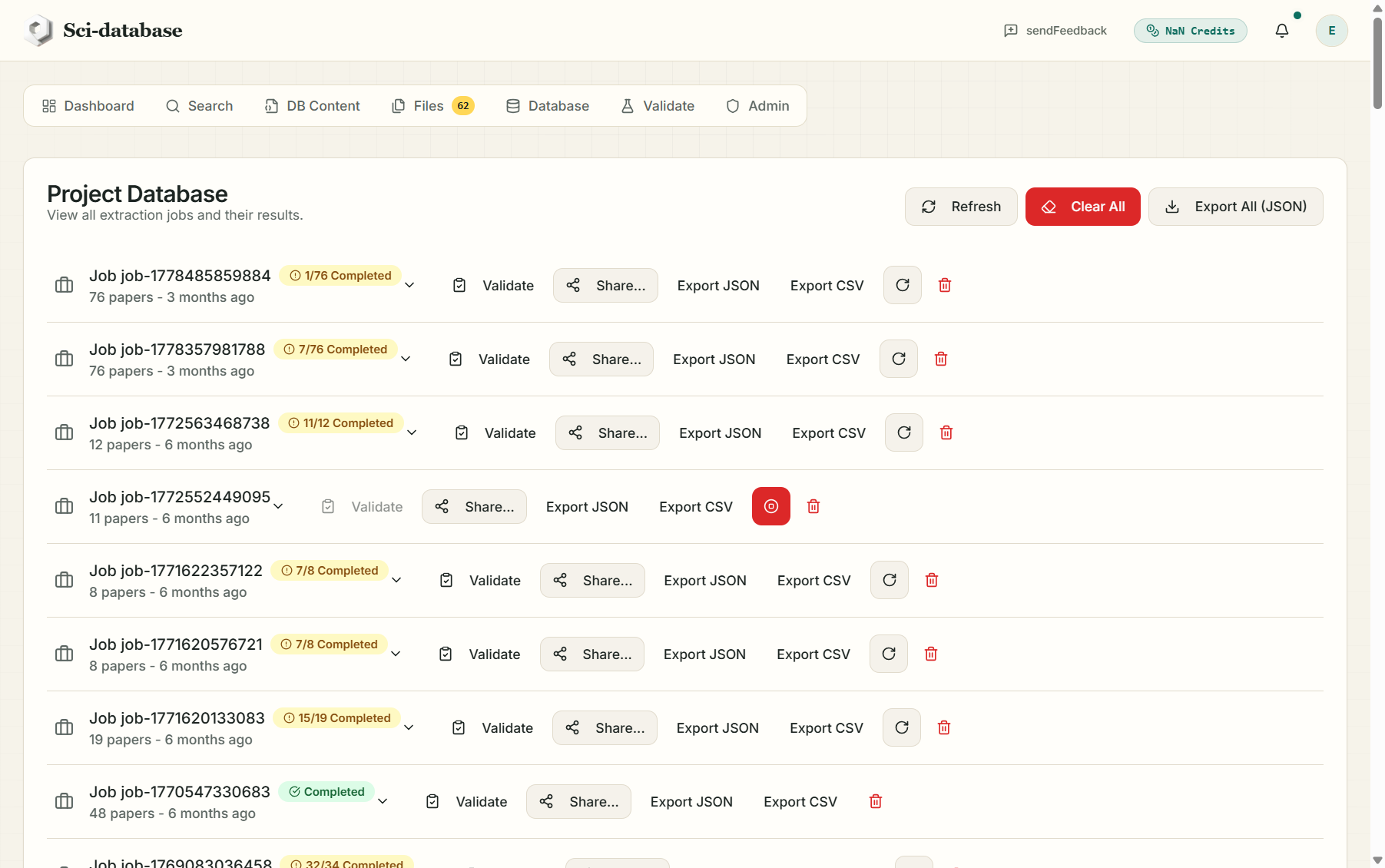
Anatomy of a job
Each job row shows its ID, status badge, paper count and age, plus badges if the database is Public or For Sale. The row buttons:
| Button | Action |
|---|---|
| Validate | Open this job in the Validate tab (chapter 7) |
| Share… | Publish or sell this database (chapter 9) |
| Export JSON | Download the complete job (papers + all extracted records) as JSON |
| Export CSV | Download the flattened database as CSV — opens directly in Excel |
| ⏹ / ↻ | Stop or resume a running/partial job |
| 🗑 | Delete the job |
Header buttons: Refresh, Export All (JSON) (every job in one file), and Clear All (deletes all jobs — double-confirmed, irreversible).
Browsing extracted data
Expand a job to see the full results table: one column per schema field, one row per paper, plus per-paper Status and token usage.
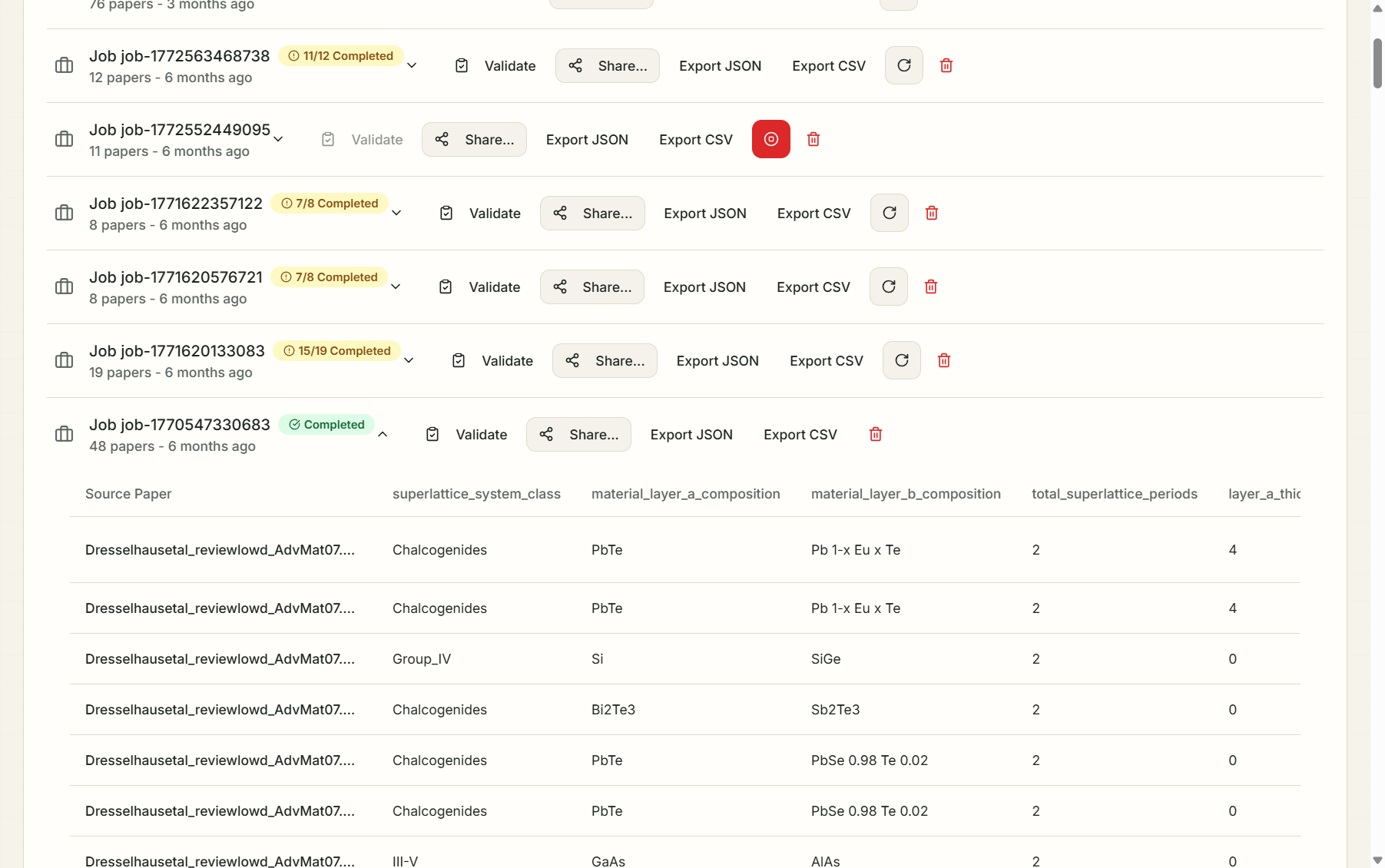
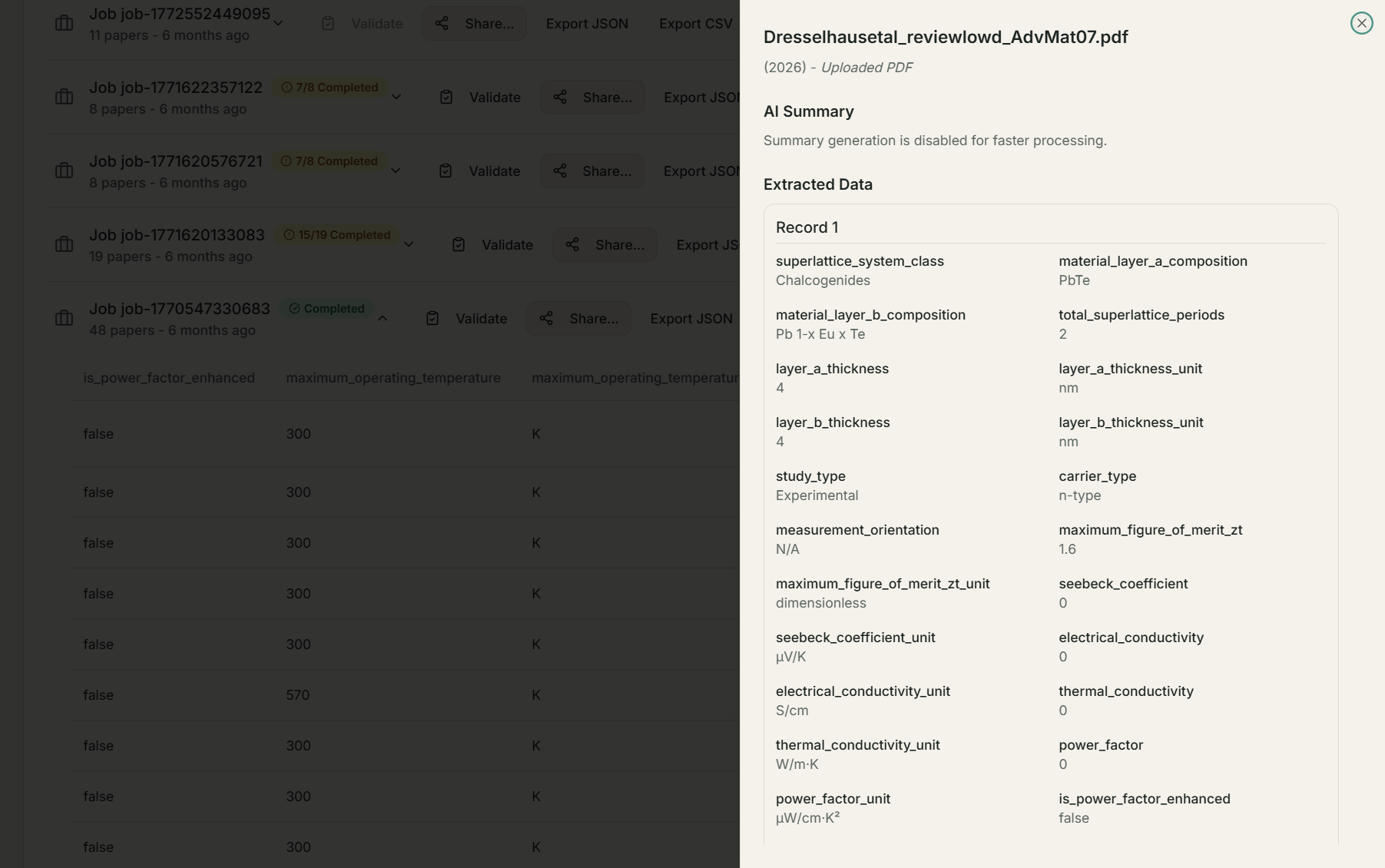
Click View on any paper to open the detail sheet with its extracted records grouped as Record 1, Record 2, … — this is where you see that one paper can contribute several rows to your database:
Papers that failed show the exact processing error; papers with no matching content show "No data was extracted for this paper." — an honest empty, not a fabricated row.
Export formats
- CSV — one row per extracted record, columns in exactly your schema's field order, only completed papers included. Opens in Excel/LibreOffice; imports cleanly into R, Stata, Python (pandas), or RevMan.
- JSON — the full structured job (including per-paper status and metadata) for programmatic pipelines.
- Email — every finished job also arrives as a CSV attachment in your inbox automatically.
Because your schema always ends with a doi / reference field, every row of every export carries its source paper — reviewers can trace any value back to the literature.