Search 200M+ papers across OpenAlex, CORE, and Semantic Scholar with focused keywords.
3 · Searching for papers
The Search tab gives you a unified search across three of the largest open scholarly indexes. You pick a source, enter keywords, and add the papers you want to your processing queue.
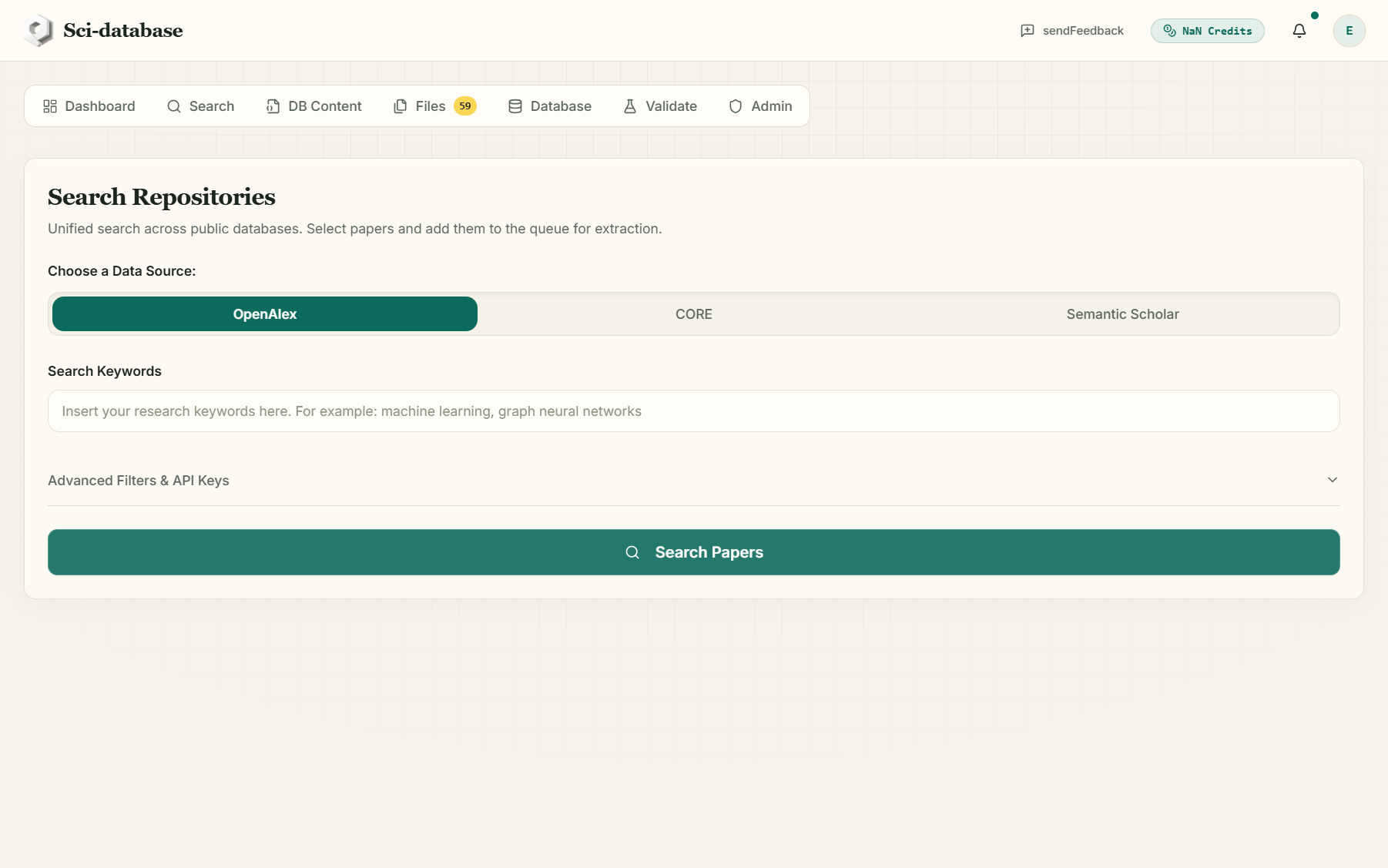
Choosing a data source
| Source | Best for | Notes |
|---|---|---|
| OpenAlex (default) | Broadest coverage — 200M+ works, all fields | No API key needed. An optional "polite pool" email improves rate limits |
| CORE | Open-access full texts, strong on repositories | Optional API key for more reliable searches (get one free) |
| Semantic Scholar | Computer science, biomedicine; venue & field filters | Optional API key for higher rate limits |
Only papers with a directly downloadable open-access PDF are shown in the results — a result you can see is a result the extractor can actually read. That is the point of search-side filtering: no dead rows in your queue.
Entering keywords
Type up to 5 keywords in the Search Keywords box (e.g. perovskite solar cell stability). Use keywords, not full sentences — a longer query is rejected with a reminder. Then press Search Papers.
Results load progressively in batches (up to 100 at a time); a Stop button lets you halt the auto-loading at any point, and Load Another 100 extends the list when you want more.
Advanced filters & API keys
Open the Advanced Filters & API Keys accordion to refine the search. The available filters depend on the selected source:
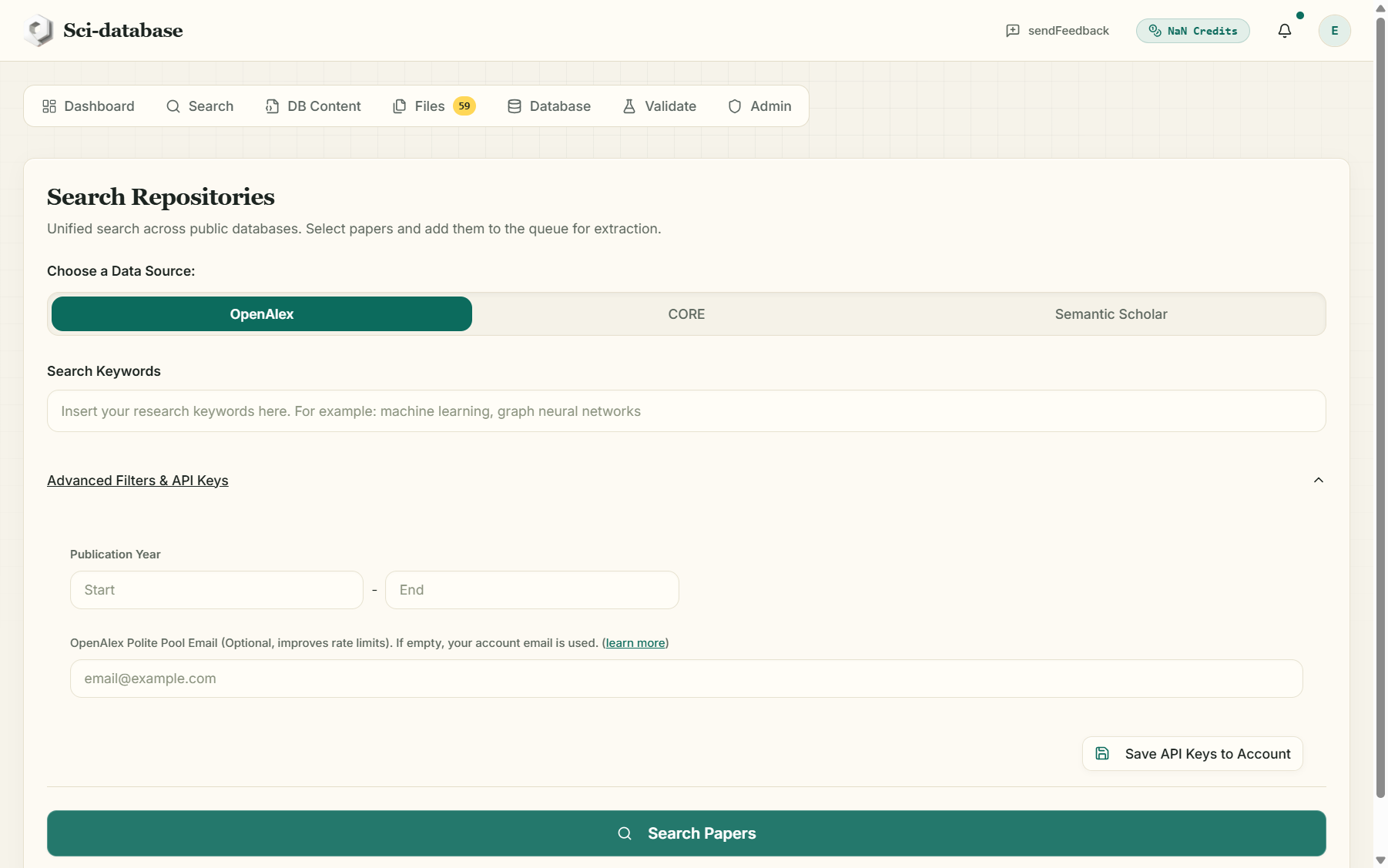
- OpenAlex: publication year range (start–end), polite-pool email.
- CORE: language (multi-select, default English), publisher (Elsevier, Springer, Wiley, MDPI, IEEE, …), CORE API key.
- Semantic Scholar: journals/venue (Nature, Science, The Lancet, PLOS ONE, …), fields of study, publication year range, API key.
Click Save API Keys to Account to persist your keys — you won't need to re-enter them next session.
Why would I add an API key? All three repositories throttle anonymous traffic during peak load. With your own (free) key, your searches bypass the shared pool and become much more reliable. If a search comes back with "Server Busy or No Results", this is almost always the reason — see Troubleshooting.
Selecting papers and building the queue
Each result card shows the title, first authors, journal, and year, plus:
- a checkbox (top-right) to select the paper,
- a Download link to open the PDF yourself in a new tab.
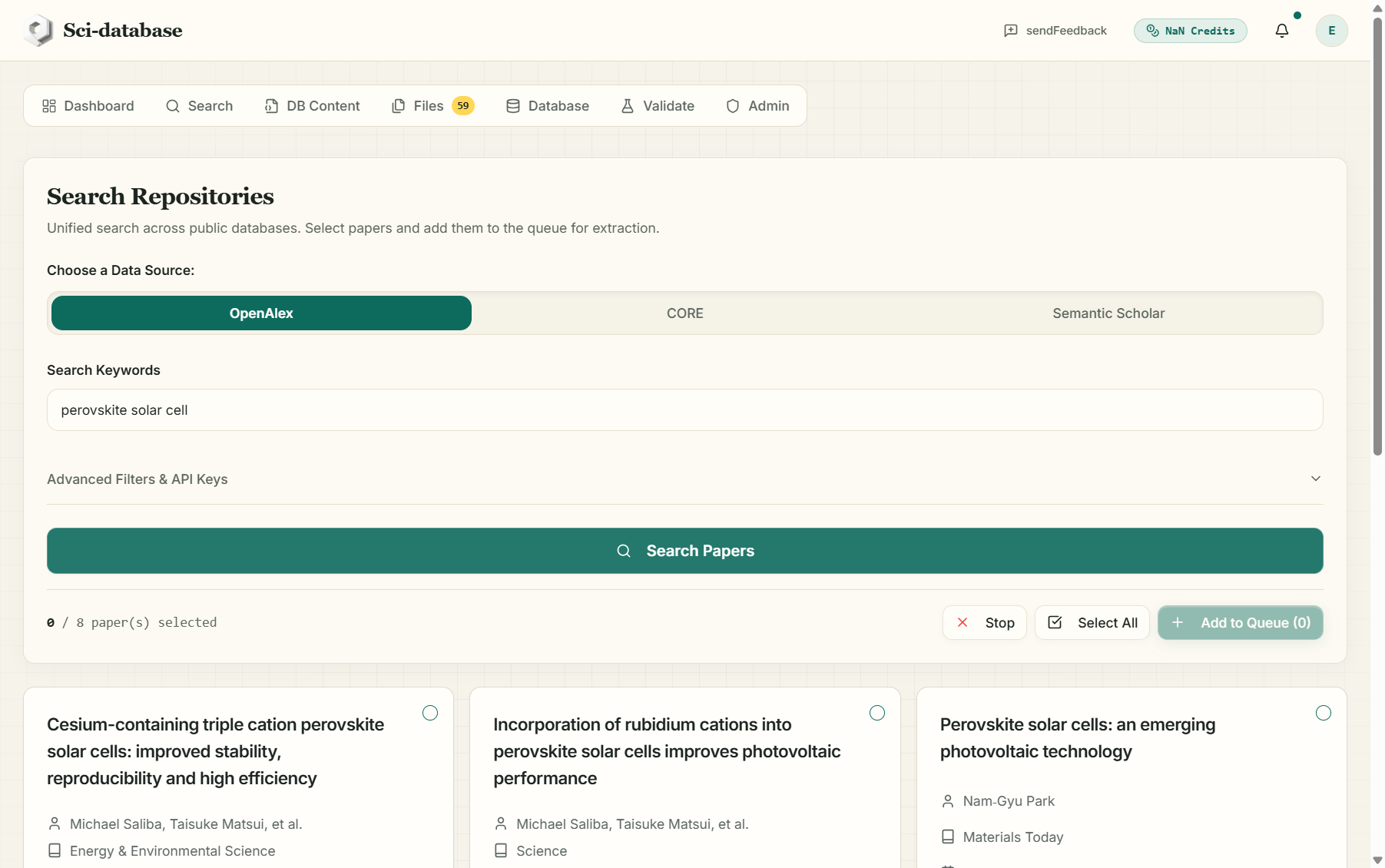
Use Select All / Deselect All for bulk selection. The toolbar shows "N / total paper(s) selected", and a floating dock at the bottom mirrors your selection with Add to Queue and Clear buttons.
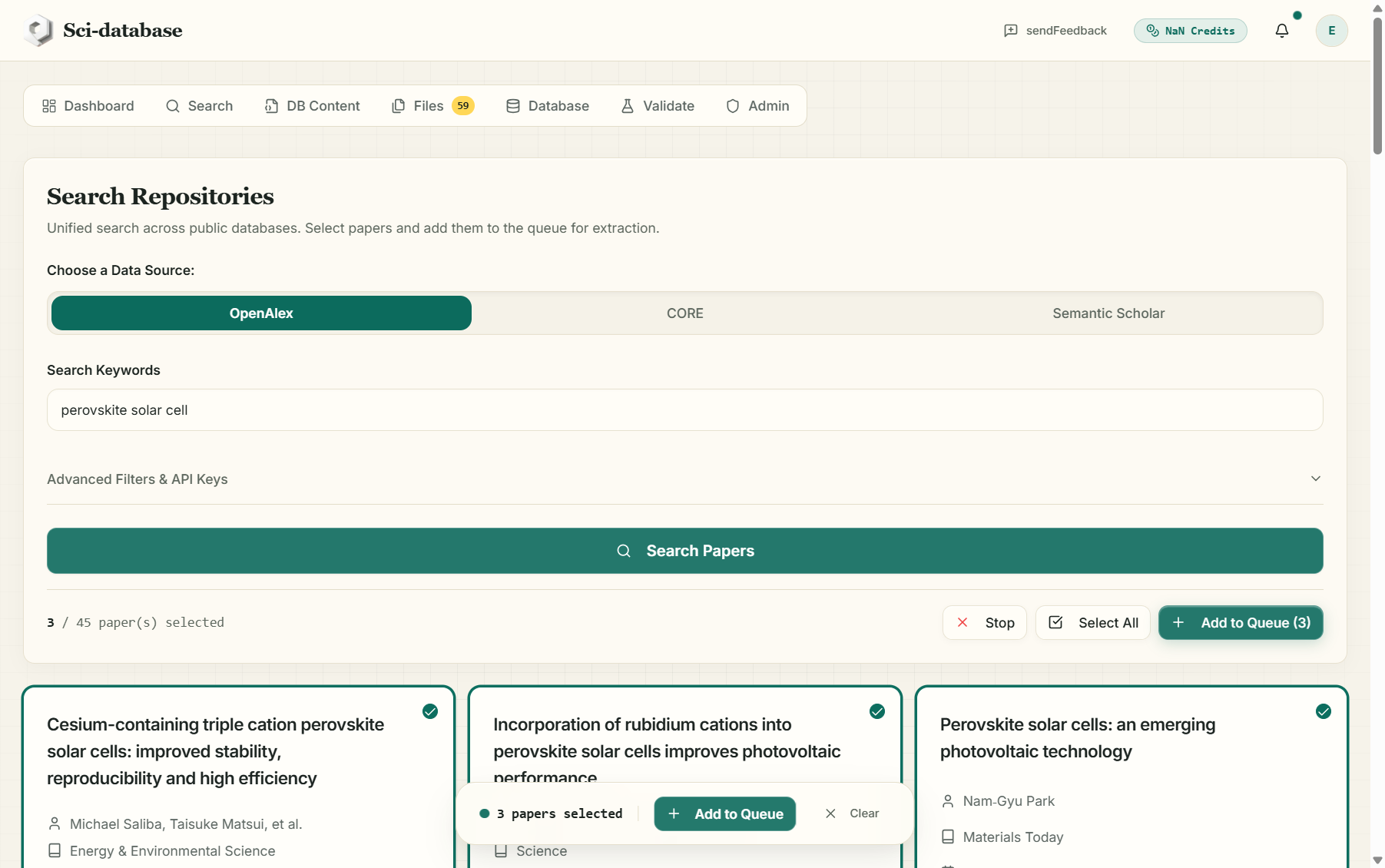
Click Add to Queue (N). The papers move to the Files tab (watch its badge count increase), where each PDF is automatically verified. Duplicates are detected and skipped — you'll see a "Duplicates Skipped" notice instead of double entries.
Adding papers to the queue is free. Credits are only spent when you process papers (Running an extraction).
Next: Files & uploads →