Automatic PDF download verification, drag-and-drop uploads, and fixing unverified files.
4 · Files & uploads
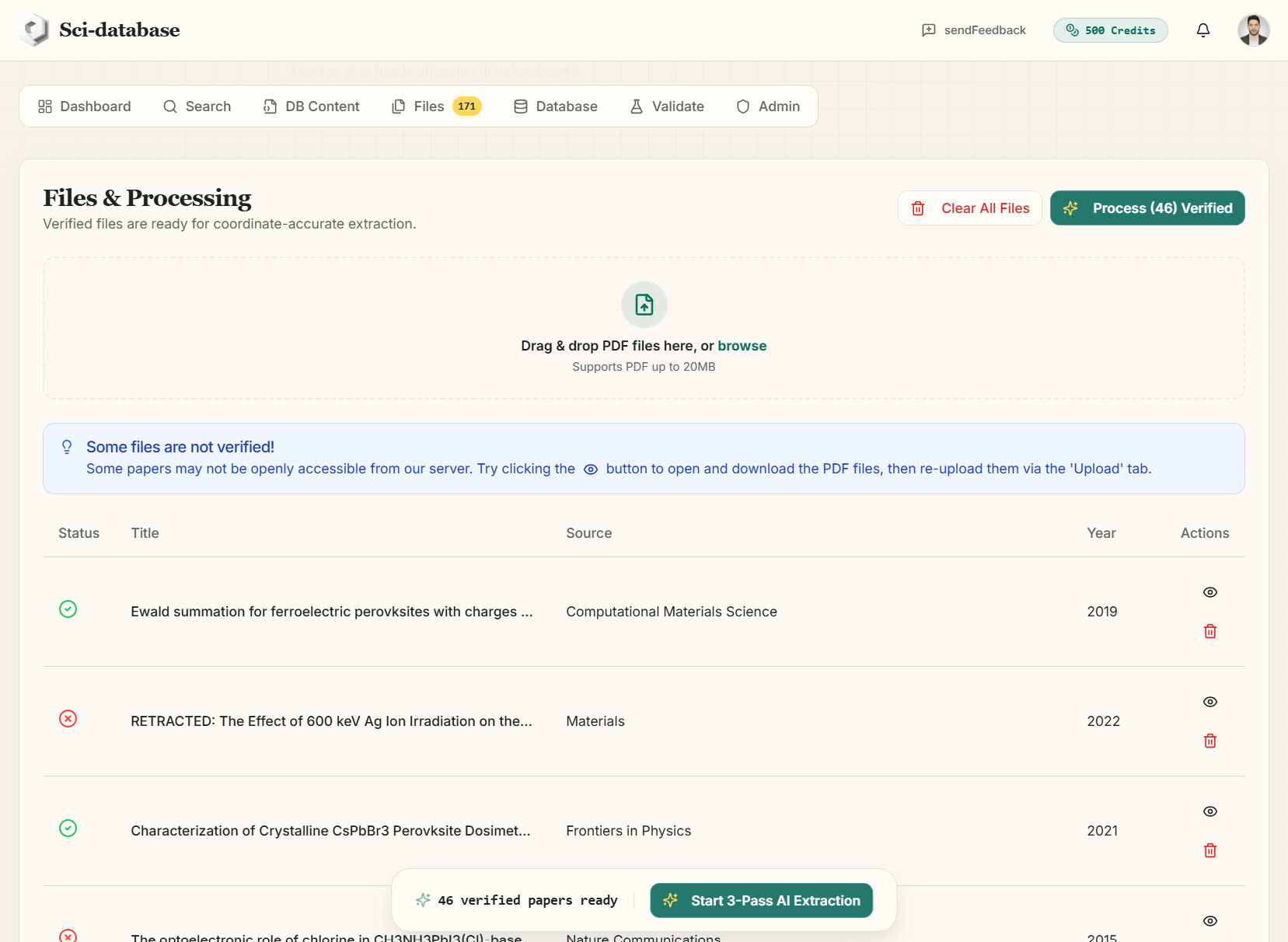
The Files tab (title: Files & Processing) is your paper queue. Everything you add — from Search or by direct upload — lands here, gets verified, and waits for extraction.
Uploading your own PDFs
If you already have the papers, skip the search entirely: drag & drop PDF files onto the dropzone (or click browse).
- Format: PDF only, up to 20 MB per file.
- Each file shows an upload progress bar; once uploaded it appears in the queue like any searched paper (source shows as "Uploaded PDF").
- Uploaded files are stored privately in your account's cloud storage and are removed from storage when you delete them from the queue.
This is also the recovery path for papers whose PDFs could not be fetched automatically (see below).
Automatic PDF verification
Every paper added to the queue is verified automatically: the server tries to download the PDF and checks that it is a real, readable file (at least 15 KB). Up to 10 papers verify in parallel — you can watch the status icons update live.
| Icon | Status | Meaning |
|---|---|---|
| ❔ grey | Pending | Not yet checked |
| ⏳ spinner | Verifying | Download in progress |
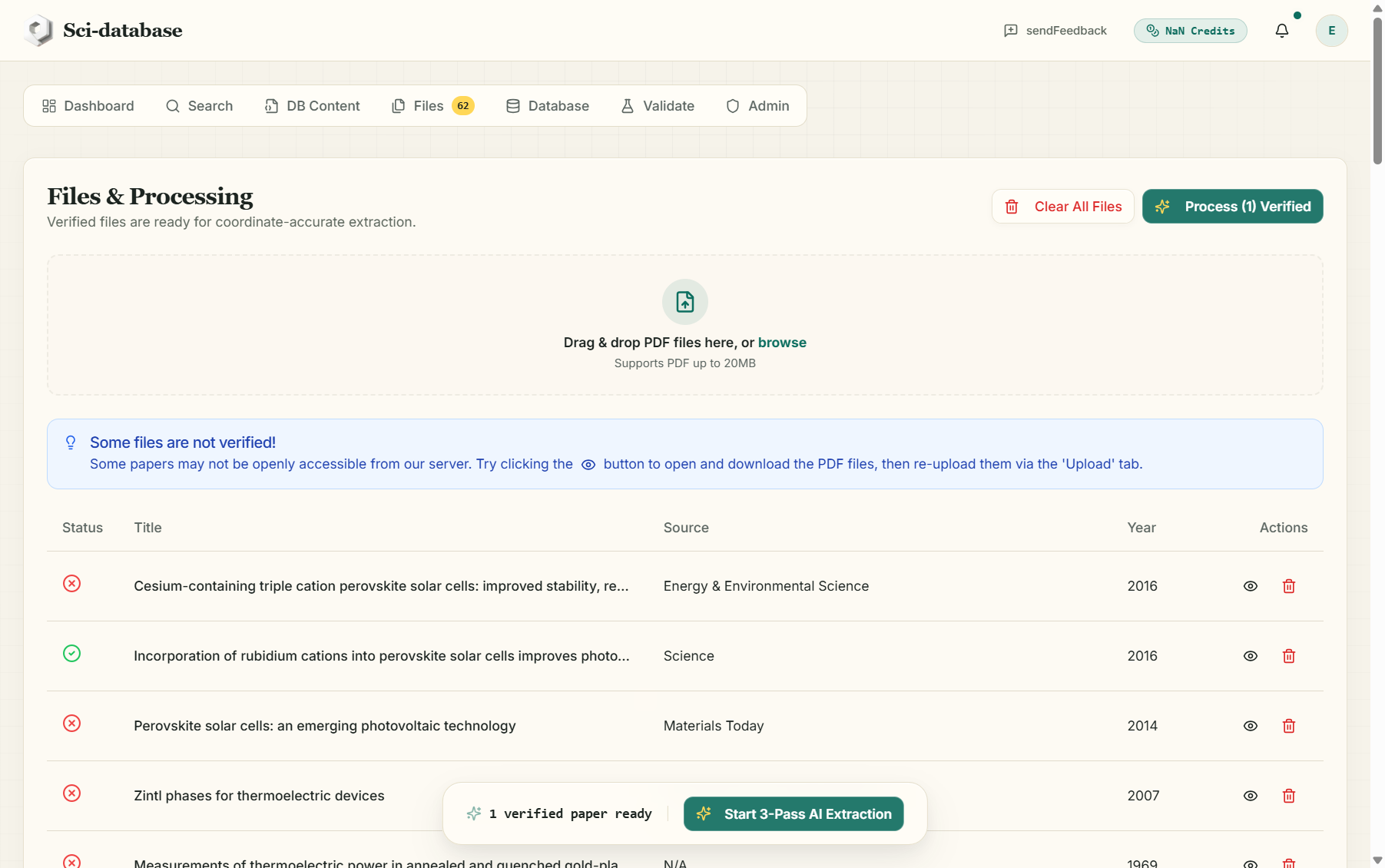
| ✅ green | Verified | File accessible and readable — ready for extraction |
| ❌ red | Failed | The PDF could not be fetched (see reasons below) |
When verification fails
Some PDFs cannot be fetched by the server even though the Download link works in your browser. Common reasons:
- The publisher blocks automated downloads (typical for paywalled versions of Science, Nature, Elsevier journals).
- The link points to a landing page instead of the PDF file.
- The repository is temporarily down, or the file is smaller than 15 KB (usually a stub or an error page).
When this happens a blue tip appears:
Some files are not verified! Some papers may not be openly accessible from our server. Try clicking the 👁 button to open and download the PDF files, then re-upload them.
The fix is simple: click the eye button (👁) on the failed row to open the PDF in your browser, download it manually, then drag it into the dropzone at the top of this same Files tab. The uploaded copy verifies instantly, and you can delete the failed row (trash icon).
This hybrid model is deliberate: the platform never pretends a paper was read when it wasn't. Only verified files can be processed.
Managing the queue
- Eye (👁) — open the paper's PDF in a new tab.
- Trash — remove one paper from the queue (also deletes your uploaded copy from storage).
- Clear All Files — empties the whole queue after a confirmation ("This will remove all papers from the files list. This action cannot be undone.").
- Queued files are not consumed by processing — after a job starts they remain in the queue until you delete them, so you can re-run them against an improved schema later.
Starting extraction
When at least one file is verified — and your schema is saved (next chapter) — the Process (N) Verified button in the header and the floating "N verified papers ready → Start 3-Pass AI Extraction" dock become active. Processing is covered in Running an extraction.
If the button is disabled with "Please save your schema before processing files.", go to DB Content and click Save Schema first.
Next: Building your schema →