AI-assisted parameter generation, controlled vocabularies, and unit pairing.
5 · Building your schema
Your schema is the structure of your future database: the columns (fields), their types, and — crucially — the descriptions that tell the AI exactly what to extract. You build it in the DB Content tab.
Let the AI draft it: AI-Powered Schema Generation
Describe your database in plain English in the top card and click Suggest Parameters:
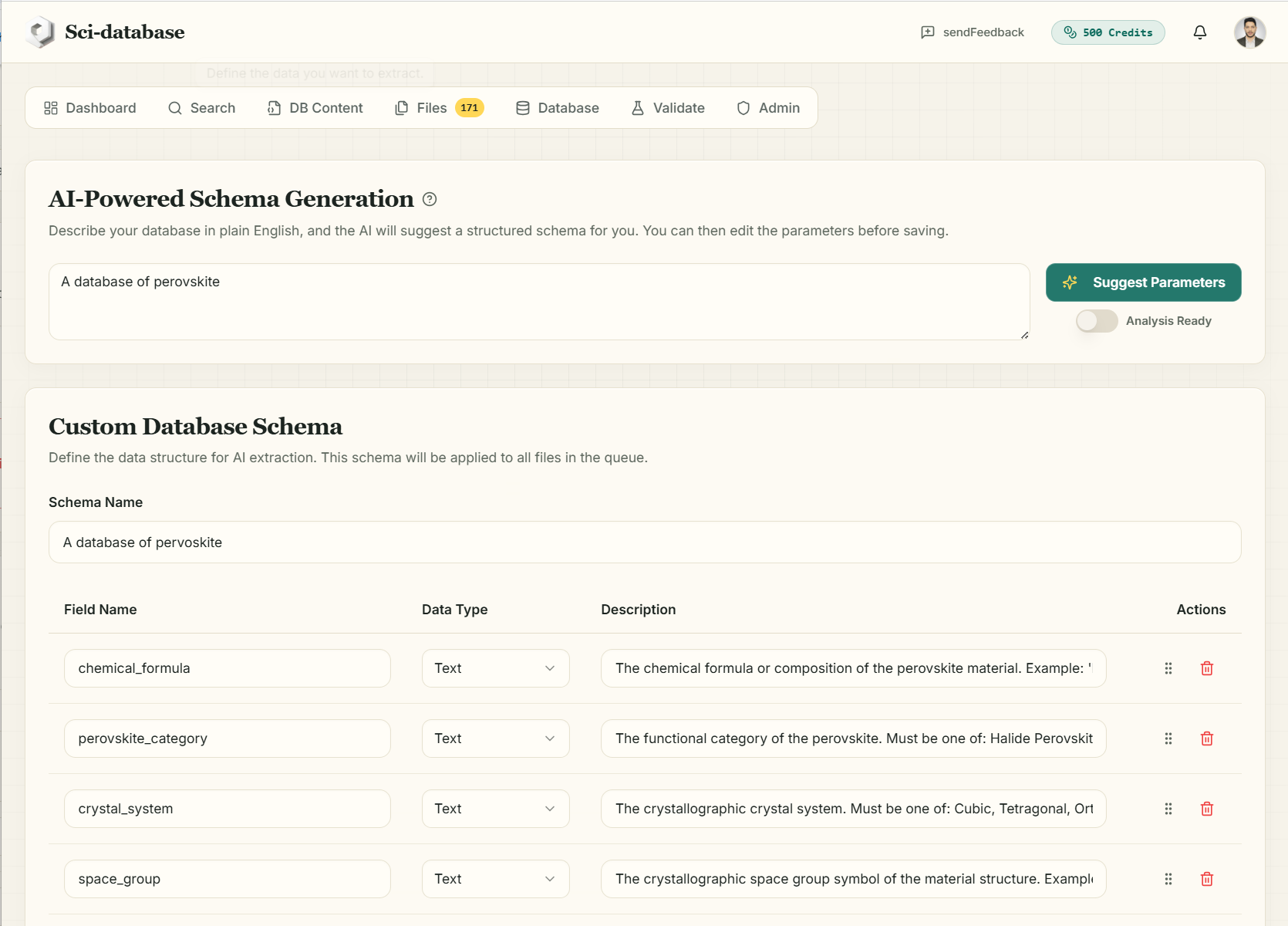
Examples of good prompts:
- "A database of perovskite solar cell efficiencies and stability"
- "A database of randomized controlled trials on hypertension: sample size, intervention, blood pressure outcomes"
- "A database of thermoelectric superlattice measurements: Seebeck coefficient, thermal conductivity, ZT"
The AI (costs 2 credits) returns a complete draft schema following strict conventions that make extractions consistent and analyzable:
- Field names in
snake_case(chemical_formula,sample_size). - Types limited to Text, Number, Date, Boolean.
- Every numeric field is paired with a
…_unittext field (seebeck_coefficient+seebeck_coefficient_unit) so units are never lost or mixed. - Categorical fields carry a controlled vocabulary in the description — e.g. "Must be one of: Cubic, Tetragonal, Orthorhombic, Hexagonal, Trigonal, Monoclinic, Triclinic" — which forces consistent values across hundreds of papers.
- A
doi/ reference field is always last, so every row in your database can be traced back to its source paper.
The Analysis Ready switch tells the AI to prefer numeric, boolean, and single-word categorical fields (and to avoid long free-text fields) — use it when the database is destined for statistical analysis or ML training rather than narrative review.
If your prompt isn't recognizable as a scientific database request, the AI declines rather than inventing something: "The AI could not identify relevant parameters for this request. Please try a more specific scientific description."
Edit everything: the Custom Database Schema editor
The AI's draft is a starting point — you have full control in the editor below:
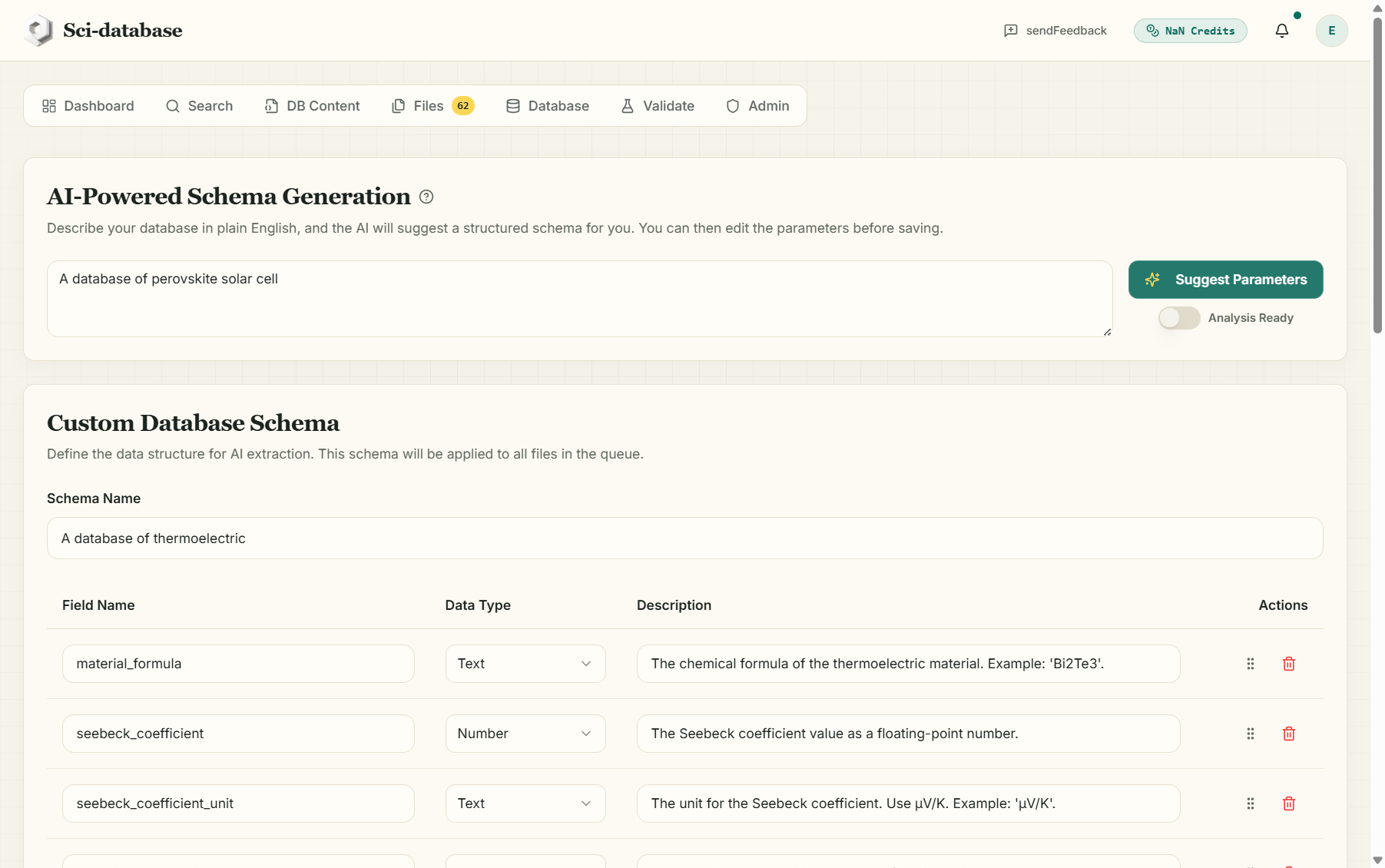
- Schema Name — name your database.
- Per field: Field Name, Data Type (Text / Number / Date / Boolean), and Description.
- Drag rows to reorder, trash icon to delete a field, Add Field to append one.
- The Suitable for Data Analysis switch marks the schema as analysis-ready.
Writing descriptions that extract well
The description is the instruction the extraction model actually follows — invest in it:
| Weak description | Strong description |
|---|---|
| "The efficiency" | "The champion power conversion efficiency (PCE) of the device as a floating-point number. Extract the exact value, do not round." |
| "The method" | "The deposition method. Must be one of: Spin coating, Vapor deposition, Blade coating, Spray coating, Inkjet printing." |
| "Temperature" | "The temperature at which properties were measured, as a number. Its unit goes in measurement_temperature_unit (K or °C)." |
Include an example value where useful ("Example: 'Bi2Te3'"). If validation later shows systematic disagreements on a field, the Improve Schema feature will rewrite these descriptions for you (chapter 7).
Saving
Click Save Schema — you'll see "Schema Saved — Your schema has been saved to your account." Saving is required before processing files.
Two things to know about saving:
- Schemas are public by design. The field definitions (never your data) are published to the public schema gallery so other researchers can reuse well-designed templates. Your papers and extracted values remain private.
- Saving updates the schema in place. If you edit and re-save an existing schema, you're updating that same schema record — the previous field definitions are replaced. Every job, however, stores a permanent snapshot of the schema it ran with, so past results always keep their original structure.
Schema history
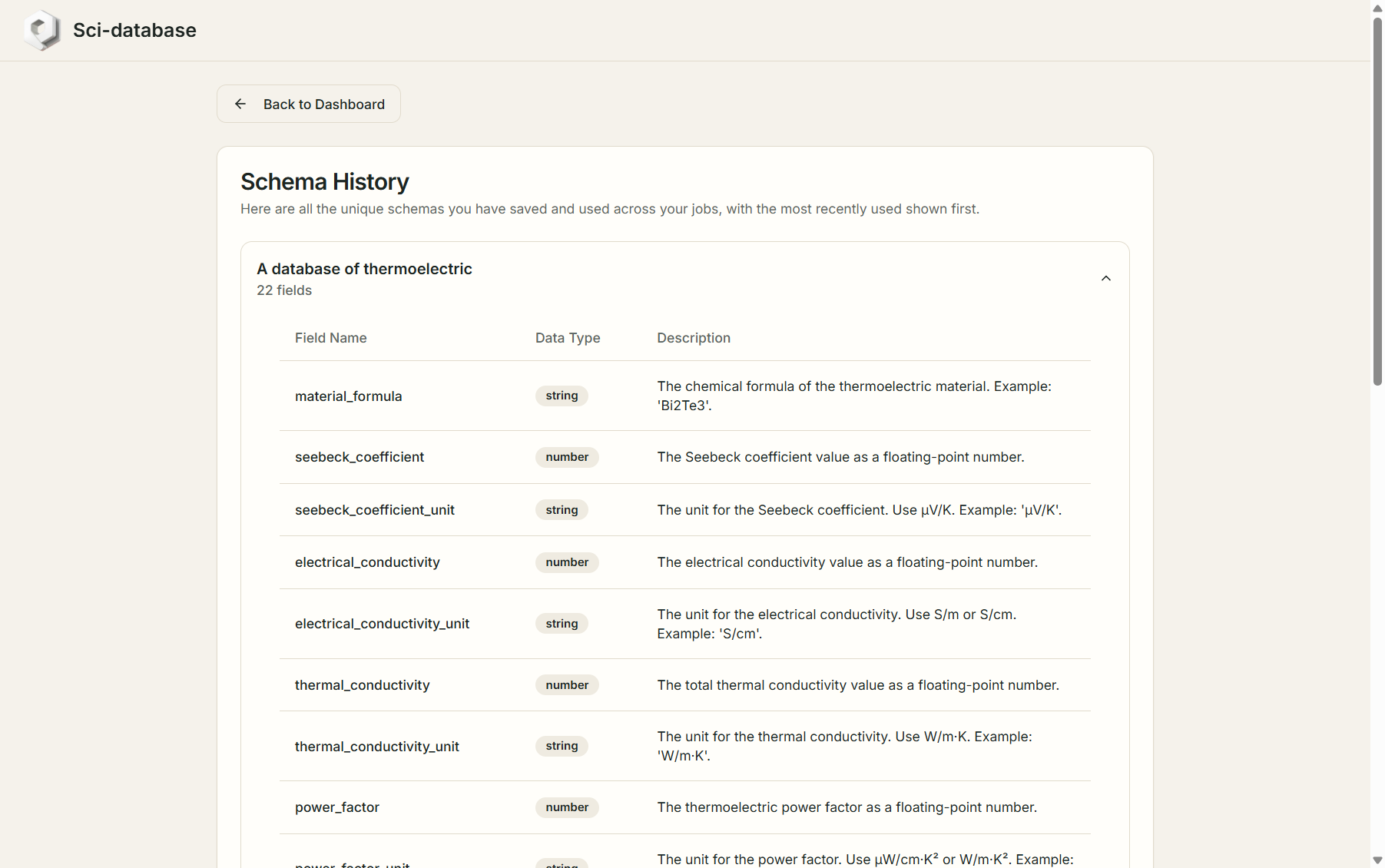
The Dashboard's Schema History card links to a page listing every unique schema you've actually used in a job, most recent first — with the full field table for each. Use it to recover a schema you've since modified.
Starting from a public schema
Found a template in the public gallery? Click "Build this Database Free" on any schema page — after login it is cloned into your editor ("Schema Loaded"), ready to use or adapt.
Next: Running an extraction →